


MP3 Converter - Video to MP3
4.8473.00 Reviews
App Specs
- Version
- 7.1.0
- Updated On
- License
- Free
- Downloads
- 1,000,000+
- Developer
- Bizcraft Apps
- Categories
- Music & Audio
- Platform
- Android, iOS
Screenshots
 Analysis by AppCompare
When I need to keep the sound from a video as a separate audio file, I want a tool that gets me from selection to a usable result without turning the job into an editing project. MP3 Converter - Video to MP3 is built for that straightforward task, with a few editing choices for people who want to tidy a clip before saving it. My view is that it makes most sense as a practical utility for occasional conversions, rather than a replacement for a dedicated audio workstation or music player.
It sits in the music and audio category, and Bizcraft Apps is the developer. The app is free to install, with optional in-app purchases listed from $0.99 to $99.99 per item, so I’d check the purchase screens carefully if I only wanted the basic conversion job. It is rated for Everyone, has an average rating of 4.9 from around 64,000 ratings, and has passed one million installs. Those figures suggest it has found an audience, but I still judge a file tool by whether its controls make sense and whether I can manage the result I create.
Choosing a converter you can use with confidence
For me, trust with a converter is less about a polished promise and more about handling my own files deliberately. Videos can contain private conversations, family recordings, or material I’m not ready to share. I would only choose a clip I have a right to use, and I would pay attention to the file-selection and save steps rather than treating conversion as an invisible background process. The useful habit is simple: select only the source you need, check the output before sharing it, and keep a copy of the original if the audio matters.
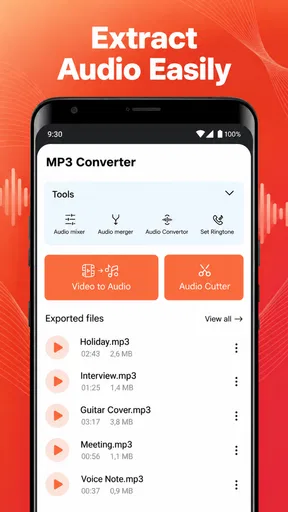
The app’s basic route is easy to understand: choose a video from your library, make any edits you need, then convert it to MP3. That focused workflow is appealing when I don’t want to import a clip into a full video editor just to retain its sound. At the same time, I wouldn’t assume that a familiar interface tells me everything about how an app handles files. I make my decision based on the choices I can see while using it and on whether the task fits my comfort level.
Keep the conversion task narrow
A good first test is a short, non-sensitive video. It lets me see how the selection and editing steps work without committing an important recording to a workflow I haven’t tried. I’d check that the chosen clip is the right one, listen to the result, and confirm that the beginning and ending are where I expect. This small trial is especially useful before converting a long lecture, a personal recording, or anything difficult to recreate.
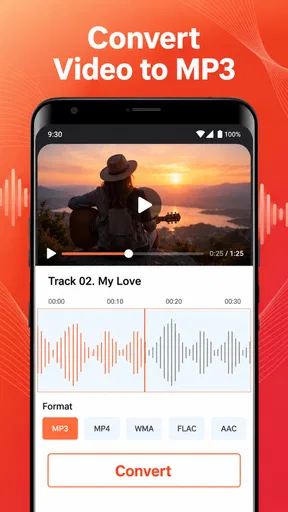
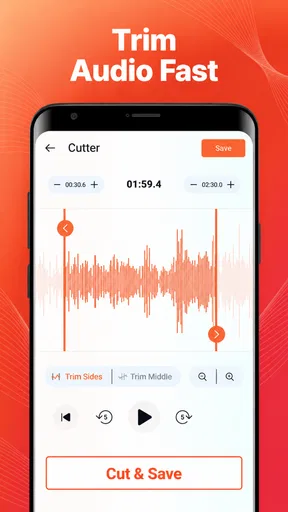
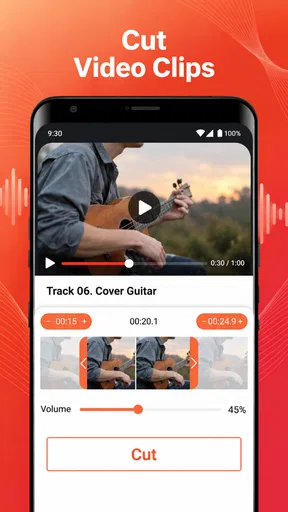
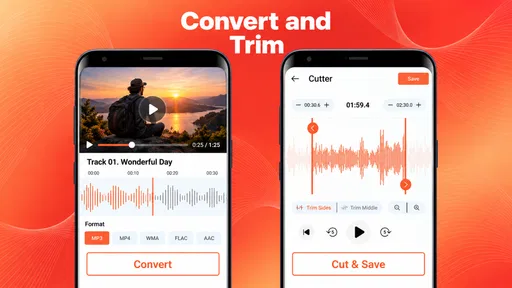
The app’s store summary describes fast conversion and cutting, and the controls described in the app include trimming and bitrate adjustment. Those are useful options, but they don’t remove the need to check the output. Trimming can help isolate a spoken passage or a short sound; bitrate gives me a way to make a practical quality-versus-file-size choice. If I’m saving a voice memo for reference, a smaller file may be perfectly adequate. If I care about music detail, I would listen before deciding that a lower setting is acceptable.
Where the visible controls help
The most meaningful user choice here is that conversion need not be an all-or-nothing pass. Being able to trim audio before finalizing it can spare me from keeping a long video’s entire soundtrack when all I need is one section. It also makes the tool more useful for extracting a brief cue or a specific spoken explanation. I’d use the preview-and-check mindset even when the controls feel simple: a trim point that is slightly off can cut a word or the start of a musical phrase.
Worth Reading Before You Choose

Baby Panda World Brings Quick Play to Modern Phones, but Its Game Library Feels Busy

ESPN’s Live Game View Makes Following Close Games Easier

QuizzLand Review: A Good Fit for Short Trivia Breaks, Not Every Player

Basketball Stars: Multiplayer Is Fast, but Can It Recover When Matches Go Wrong?

WEBTOON Turns Phone Updates Into a Better Reading Routine

Link to Windows Runs on Shared Habits, Not Social Feeds
Batch conversion is another workflow mentioned for the app, and it can help when I have several videos to process in one sitting. I’d still approach a batch selectively. First, I’d test one representative clip and make sure the output is suitable; then I’d queue only the files I actually need. That avoids spending time converting duplicates or unwanted footage, and it gives me a chance to catch a problem before it affects a whole group of files.
There is a trade-off between convenience and control. A focused converter can be quicker to learn than a general-purpose editor, but it is not the place I’d go for detailed mixing, careful noise cleanup, or elaborate sound design. The basic effects described for the app may be enough for modest changes, but anyone who needs fine control over several audio tracks or precise restoration will be better served by an audio editor built for that work.
Everyday jobs it suits—and ones it doesn’t
A realistic use for me would be saving a teacher’s public lesson video for offline listening during a commute, if I’m allowed to make that copy. I’d select the relevant recording, trim away any opening or closing material I don’t need, and listen through the finished audio before relying on it. That is more convenient than reopening the video whenever I want to revisit one explanation. For study, I’d also label or organize the result outside the conversion step so I can find it later instead of ending up with a folder of indistinguishable files.
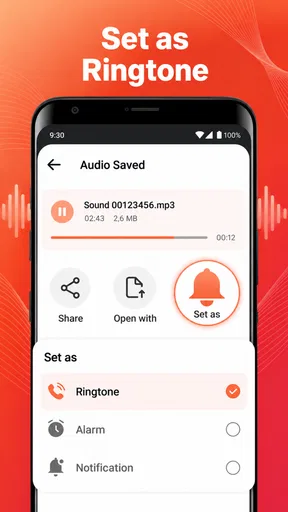
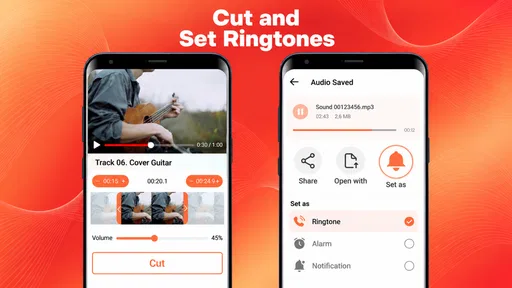
It can also be handy for making a short personal ringtone from a video I own, or keeping the spoken portion of a home recording without carrying the full video around. I’d be cautious with music from commercial videos: extracting a track does not give me permission to redistribute it, and a converted file may not sound identical to a proper audio release. For public posts, paid content, or someone else’s recording, rights and platform rules matter more than how easy the conversion is.
I’d skip this app if my main goal were to stream music, build playlists, record audio, or edit a multitrack project. A music player is a better choice for listening and library management; a video editor is more suitable when I need to change the picture and sound together; and a dedicated audio editor offers more room for detailed processing. This converter is most useful when the source is already a video and the desired outcome is a separate MP3, not when I need a complete media-production toolkit.
Practical checks before keeping a file
One point users often wonder about is whether a converted file will sound as good as the source. I wouldn’t expect conversion to create detail that was not present in the video’s audio. The bitrate setting gives some control over the output, but the original recording still sets the ceiling. For speech, clarity and a clean trim may matter more than pursuing a large file; for music, I’d compare the saved result with the source using headphones before deleting anything.
Another sensible question is what to do if a video does not appear in the library chooser or fails to convert. I’d first confirm I selected the intended file and that the original plays normally, then try a smaller or more familiar clip to distinguish a source-file issue from a general workflow problem. I would avoid repeatedly processing a valuable video without keeping its original. Support for multiple video formats is described, but a broad format list is not a guarantee that every unusual encoding will behave the same way.
File organization deserves a little thought, too. Conversion creates another item to manage, and it is easy to forget which audio came from which source. I’d use clear names where the app allows it, or organize the resulting files afterward using the phone’s usual file tools. That is particularly helpful for class recordings or batches, where a recognizable title saves more time than converting everything as quickly as possible.
There are a few practical boundaries I keep in mind. A long video takes more time to process than a short clip, and a large collection can make storage management important. I would leave space for the output, avoid starting a large batch when I need the phone for something else, and check the resulting files before removing source videos. These are ordinary precautions, but they make a simple conversion workflow less frustrating.
Version, cost, and a measured recommendation
The current version is 7.1.0, and the stated minimum operating system is 8.0. I’d check compatibility on my device before relying on it for a particular project. Since the app is free with in-app purchases ranging from $0.99 to $99.99 per item, I’d also distinguish the no-cost download from any paid option shown inside the app. If I only need a one-off conversion, I would make sure I understand what a purchase offers before spending money; if I convert regularly, the value depends on whether the controls save me enough effort.
Compared with the usual alternatives, this app’s appeal is its narrow, direct path from video selection to MP3 output, with trimming and bitrate choices available along the way. A general media editor may be more capable but can add steps I don’t need. A basic converter elsewhere may be enough for a single clip, while this one is worth considering if its batch option and editing controls match a repeated routine. I would not choose between tools by rating alone; I’d test the exact kind of file I expect to use and judge the result for myself.
Bizcraft Apps’ converter is a reasonable fit for someone who wants a simple way to turn selected video audio into a file they can listen to separately. I like the practical emphasis on trimming and the possibility of handling several clips in one session, but I’d still check output quality, file organization, and any purchase prompt before settling into a routine. It is not the right answer for every audio task, and it does not remove the need to respect ownership or protect sensitive recordings. For occasional, purposeful conversion, though, it offers a clear starting point without requiring me to learn a full editing suite.
Getting Started with MP3 Converter
First things first, the installation process for MP3 Converter - Video to MP3 was a breeze. I found it easily on the app store, downloaded it, and within minutes, I was ready to explore. The user interface is super intuitive, which is a major plus for someone like me who doesn’t want to spend ages figuring out how to use a new app.
Once you open the app, you’re greeted with a simple screen where you can choose a video from your library. The app supports multiple video formats, so whether it’s an MP4, AVI, or something else, you’re covered. Just select your video, and you’re good to go!
Features That Stand Out
What really impressed me was the range of features packed into this app. Not only does it convert video to MP3, but it also allows you to edit the audio before finalizing the conversion. You can trim the audio, adjust the bitrate, and even add some basic effects. It’s like having a mini audio studio right on your phone.
Another cool feature is the batch conversion option. If you’ve got a bunch of videos you want to convert, you can select them all at once and let the app do its thing. This is a huge time-saver, especially if you’re working with several files.
Performance and Usability
In terms of performance, MP3 Converter - Video to MP3 gets the job done pretty quickly. The conversion speed is impressive, and I didn’t notice any lag or crashes during my use. The app runs smoothly, which is always a relief when dealing with media files.
Usability-wise, everything is laid out clearly. There are no complicated settings to mess around with, and the app guides you through each step. For those who might not be as tech-savvy, there’s a helpful tutorial within the app that explains the basics.
Why You Might Love It
If you’re someone who needs to extract audio from videos regularly, this app is a game-changer. It’s perfect for creating ringtones, saving podcast audio, or even making study notes from educational videos. Plus, the ability to edit the audio before conversion adds an extra layer of customization that I really appreciate.
The app also has minimal ads, which is a blessing. Nothing’s worse than being bombarded with ads while you’re trying to get something done, right?
Final Thoughts
All in all, I’d definitely recommend giving it a try. It’s user-friendly, efficient, and packed with features that make audio extraction a breeze. Whether you’re a techie or just someone who loves their audio, this app offers something for everyone.
So, if you’re looking to convert videos to MP3s without hassle, this app might just be your new best friend. Why not give it a whirl?
Pros
- Easy-to-use interface for quick conversions.
- Supports various video formats seamlessly.
- Fast processing with minimal quality loss.
- Option to edit metadata for MP3 files.
- Batch conversion available for efficiency.
Cons
- Contains ads that can be intrusive.
- Limited free features; some require purchase.
- Occasional bugs during conversion process.
- No direct cloud storage integration.
- User interface feels slightly outdated.
FAQs for MP3 Converter - Video to MP3
What is MP3 Converter - Video to MP3 and how does it work?
MP3 Converter - Video to MP3 is a versatile app designed to convert video files into audio format, specifically MP3. Users can select videos from their device, and the app efficiently extracts the audio, allowing for easy playback and storage. The process is straightforward, making it accessible even for those with limited technical expertise.
Is MP3 Converter - Video to MP3 free to use?
Yes, MP3 Converter - Video to MP3 offers a free version with essential features. However, it may include ads or have limitations on the number of conversions. To access premium features, such as ad-free experience or batch conversion, users might need to purchase a subscription or a one-time upgrade.
What video formats are supported by MP3 Converter - Video to MP3?
The app supports a wide range of video formats, including MP4, AVI, MKV, and MOV, among others. This flexibility ensures that users can convert most of the common video files they might have on their devices into MP3 format, enhancing the app's utility and convenience.
Can I edit audio settings before converting with MP3 Converter - Video to MP3?
Yes, the app allows users to adjust audio settings such as bitrate, sample rate, and audio quality before conversion. This customization ensures that the output file meets specific requirements, whether users prioritize sound quality or file size, providing a personalized conversion experience.
Is it safe to download and use MP3 Converter - Video to MP3?
MP3 Converter - Video to MP3 is generally safe to download from reputable app stores like Google Play or the Apple App Store. It's important to ensure that your device's security settings are up to date and that you download the app from official sources to avoid malicious software.


